How to Export a Map to GeoJSON (Free, In Your Browser)
June 10, 2026
MapGridder exports everything you place on the map to a single GeoJSON file: waypoints, routes, distance measurements, shapes, symbols, radius rings, and even the metric grid lines. GeoJSON is an open standard, so the file you download opens in almost any mapping or GIS tool. The whole export runs in your browser, and nothing is uploaded. Here is how to do it.
What is GeoJSON?
GeoJSON is an open standard (RFC 7946) for encoding geographic data as JSON. Everything is a Feature: a geometry (a point, a line, or a polygon) plus a properties object that holds whatever else you want, such as a name or a color. Features are grouped into a single FeatureCollection, which is the whole file.
Because it is plain text and an open standard, GeoJSON is one of the most widely supported geographic formats. You can open it in common desktop GIS applications, drop it into many web maps, load it in code libraries, or just read it in a text editor. That portability is the reason to export to it: it is the format other tools are most likely to accept.
Open the export dialog
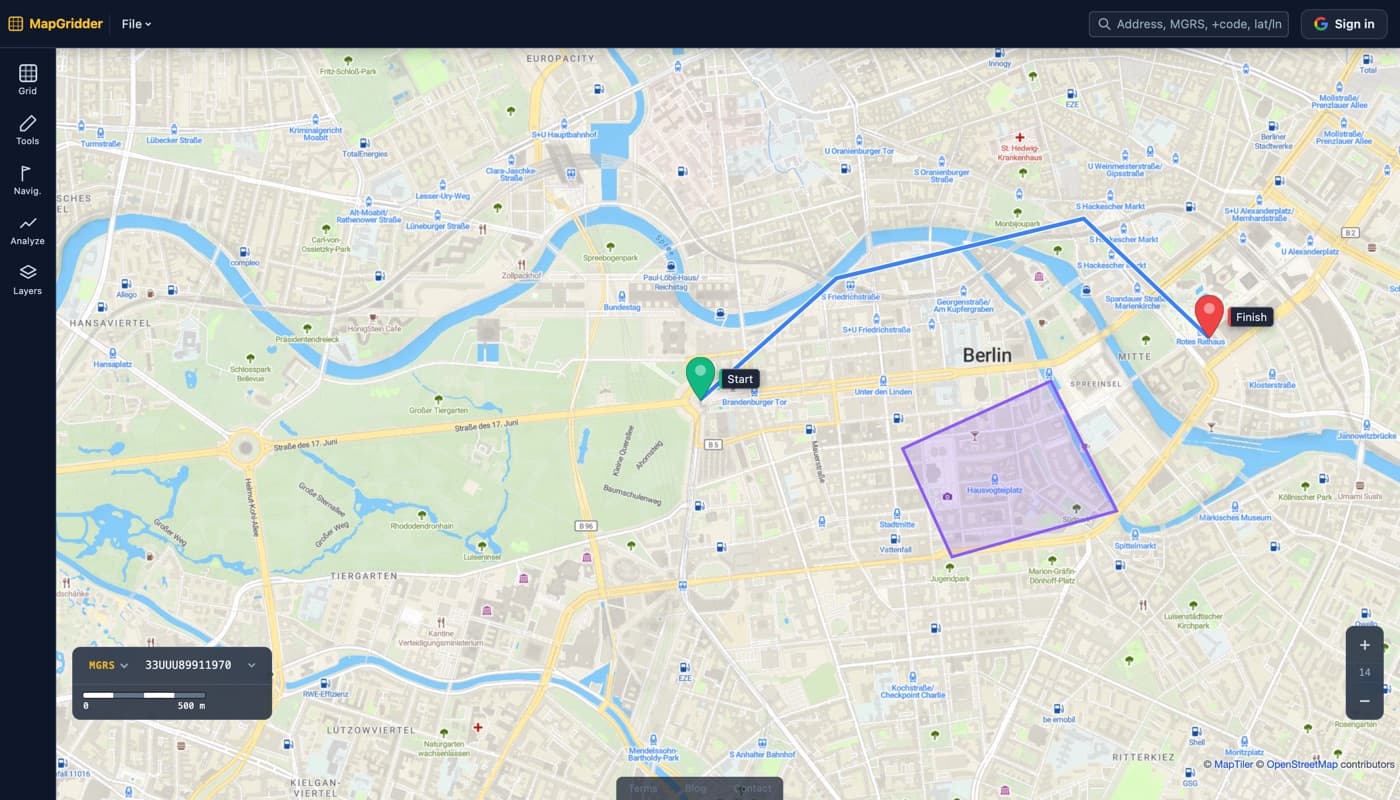
First, build your map. Drop waypoints, draw routes, measure distances, add shapes and symbols, set up a grid. When the map holds everything you want to save, open the toolbar at the top and pick:
File → Export
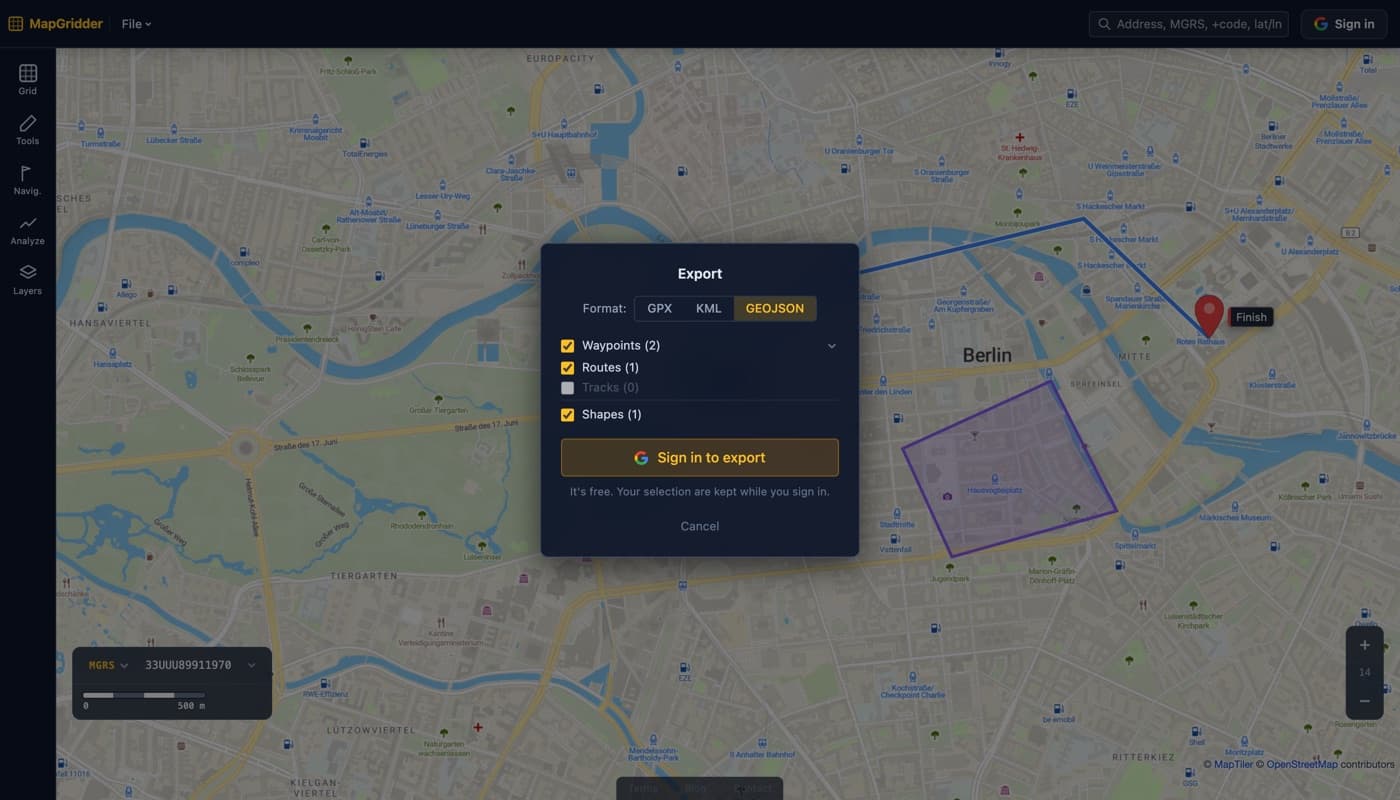
The dialog opens in the middle of the screen with a format toggle: GPX, KML, or GeoJSON. Pick GeoJSON.
Choose what to include
GeoJSON can carry far more than GPX or KML, so when you pick it the dialog reveals extra toggles. Turn on only the layers you want in the file:
- Waypoints and routes: included by default, the same as a GPX or KML export.
- Measurements: distance lines, each with its measured length in the properties.
- Shapes: lines, arrows, polygons, rectangles, and circles, with their color, width, line style, and fill.
- Symbols: tactical symbols and topographic pictograms, with their type and label.
- Radius rings: each ring as a polygon plus a center point, with its radius in meters.
Click Export and the GeoJSON file downloads. Open it in a text editor if you want to see the structure: one FeatureCollection, with one Feature per item and a descriptive properties object on each.
How your data maps onto GeoJSON
Each kind of map object becomes the GeoJSON geometry that fits it best, with the styling preserved in the properties:
- Waypoints and symbols become Point features.
- Routes, measurements, lines, and arrows become LineString features.
- Polygons, rectangles, circles, and radius rings become Polygon features.
Keeping the styling in properties means a tool that understands those keys can redraw your map closely, while a tool that ignores them still gets correct, usable geometry.
Who this is for
- Anyone handing map data to a GIS analyst who works in desktop GIS and expects an open, standard format.
- Developers who want to drop the geometry straight into a web map or process it in code.
- Field teams archiving a plan (waypoints, routes, rings) in a format that will still open years from now.
- Anyone moving data between tools that speak GeoJSON but not each other's native files.
Going the other way
The same map reads GeoJSON back in. A file MapGridder exported returns to the layers it came from, so waypoints are waypoints again and a ring set is a ring set, with color and size intact. A file from another tool has no way to carry that meaning, so it is placed by geometry instead: points become waypoints, lines become routes, and polygon outlines become shapes.
Two limits are worth knowing. Coordinates must be WGS84 longitude and latitude, which is all RFC 7946 allows; a file still carrying a projected coordinate system is refused rather than dropped in the wrong place. And a single import tops out at 2,000 features, enough for a plan and well short of a full data dump.
FAQ
How do I export a map to GeoJSON?
Build your waypoints, routes, measurements, shapes, and symbols, then choose File → Export, set the format to GeoJSON, toggle the layers you want, and click Export. The file downloads to your device.
What gets included in the file?
Waypoints, routes, distance measurements, shapes, text labels, tactical and topographic symbols, radius rings, and the custom metric grid lines. Each feature keeps properties like name, color, and size.
What can I open a GeoJSON file with?
Most mapping and GIS applications read GeoJSON, and you can also load it into many web maps and code libraries. It is a plain-text JSON file, so it is easy to inspect or process by hand.
Can I import a GeoJSON file back?
Yes. Choose File → Import and pick a .geojson or .json file, up to 5 MB. If the map already has data on it, you can merge the file into it or replace what is there.
Is anything uploaded?
No. The GeoJSON is assembled entirely in your browser. The only network traffic is the basemap tiles needed to draw the map.
Is it free to use?
Yes. No watermark and no per-export fee; a quick, free sign-in is needed to export. Personal and non-commercial use is free; commercial use needs a paid license.
Ready to try it? Open the map, set up your view, and pick File → Export, then GeoJSON. You can also read the GeoJSON export tool page.