How to Measure Distances on a Map Without GIS Software
March 9, 2026
You don't need expensive GIS software to measure real-world distances on a map. Browser-based tools now measure distance accurately in a couple of clicks, using the same math professional navigation systems use to account for Earth's curvature.
How Map Distance Measurement Works
When you click two points on an interactive map, the tool reads their latitude and longitude, then applies the Haversine formula to compute the great-circle distance between them. In plain terms: the Earth is a ball, so the shortest path between two points bends with the surface instead of running flat. The formula measures along that curve, the same line a plane would fly, and gives you the result in meters, kilometers, feet, or miles.
For multi-point paths, each segment is calculated independently and the total is summed. This lets you trace roads, trails, or perimeters and get a cumulative distance.
Using the Measure Tool in MapGridder
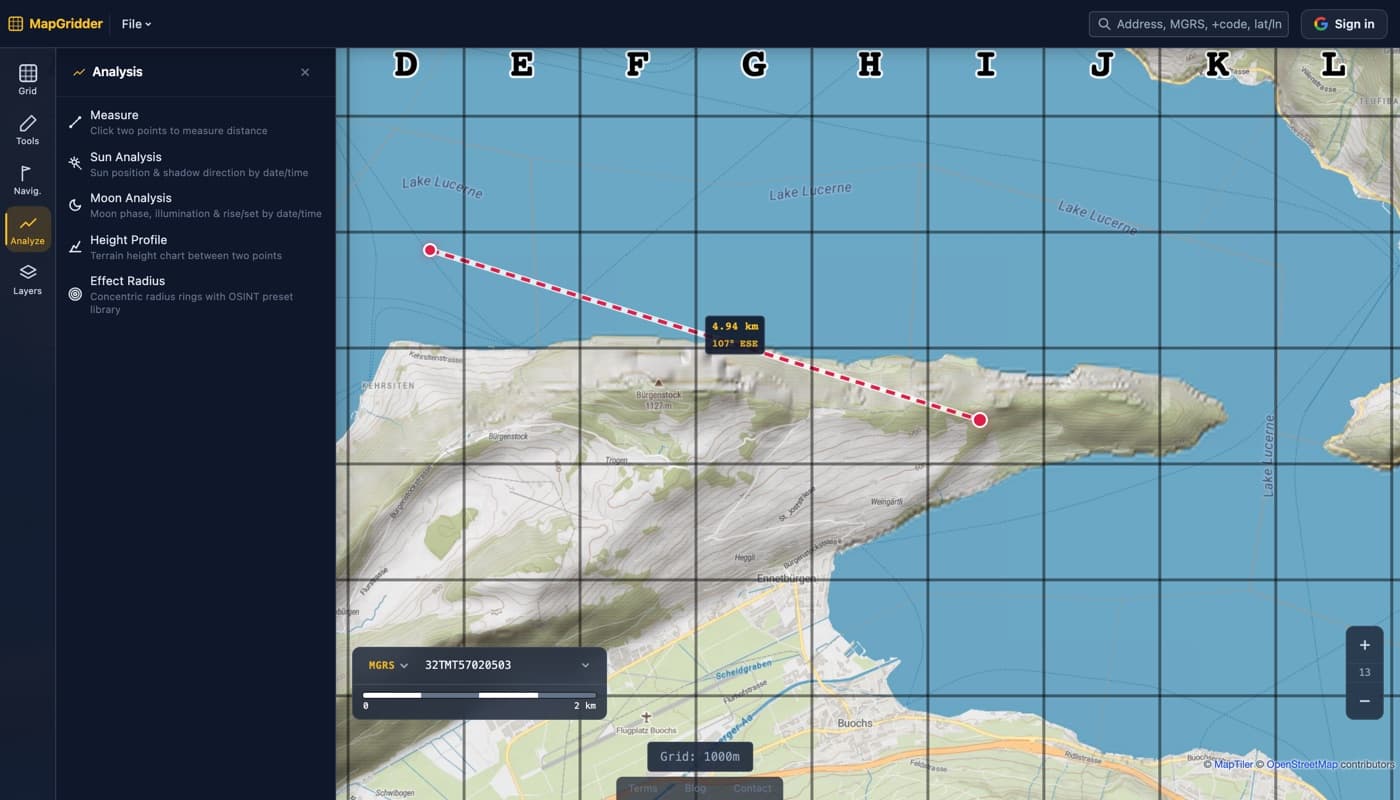
- Open the Analysis group in the left rail (bottom tabs on mobile) and pick Measure.
- Click on the map to place your first point; a marker appears.
- Click again to place a second point. The line connects the two and shows the distance and bearing right on the map.
- Press Enter to finish. To add more legs, click the finished line to select it and keep clicking new points; the labels update as you go.
- Switch between metric (m/km) and imperial (ft/mi) under File → Units.
Combining Grids and Measurements
A powerful workflow is to overlay a grid first, then use the measure tool for fine-grained distances within specific cells. For example, if you know each grid cell is 100m × 100m, you can quickly estimate areas (one cell = 10,000m² = 1 hectare), then use the measure tool for irregularly shaped features inside a cell.
Give it a try: Open MapGridder and activate the measure tool. No account, no download, just click and measure.