How to Create a GRG: Overlay an Image on a Map and Add a Grid
June 12, 2026
GRG stands for gridded reference graphic, which is a heavy name for a simple thing. You take a picture, pin it to the right spot on a real map, and draw a grid over the top. Now a team can talk about "square C4" instead of "the building with the blue roof, no, the other one." Soldiers use GRGs to work through a block house by house. The same trick helps a search team split up an area, or lets you lay an old paper map over the place it actually covers. Here is how to build one in MapGridder. It all happens in your browser, and there is nothing to install or sign into.
The image can come from anywhere. Download a map picture from the internet, photograph a paper map, screenshot a building plan, or draw your own. Once it is pinned in place, that picture stops being just a picture: it becomes part of a real map, where every point has a coordinate, distances measure true, and one tap on My location shows where you are standing on it.
Build your own GRG in a couple of minutes, right in your browser.
Open the GRG overlay toolDrop the image on the map
Open the map and choose File → Overlay / GRG, then hit Upload image. The picture lands in the middle of your current view at about the size of the screen. From there it behaves like any other layer: it shows up in the Layers menu, where you can hide it, bring it back, or jump straight to its controls.
A GeoTIFF skips the next step, because it places itself from the georeferencing stored in the file. See how to open a GeoTIFF online.
Line it up
This is the part that earns the "reference" in the name. Anchoring (the textbook word is georeferencing) has two modes:
- Simple moves, scales, and spins the whole image at once. It keeps the aspect ratio so nothing stretches, and it is the right choice for a flat, top-down picture like a map scan or a site plan.
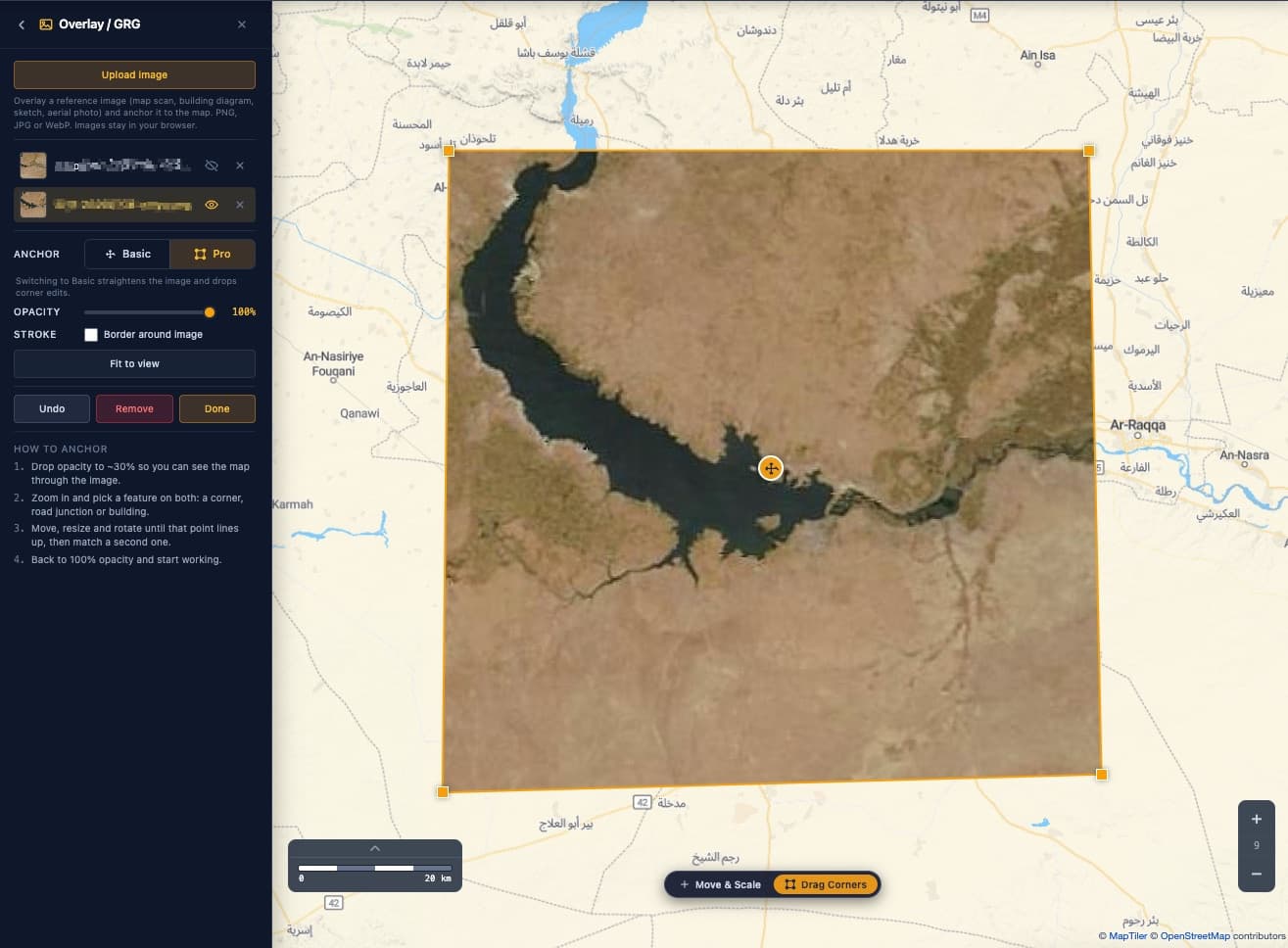
- Pro hands you the four corners to drag one by one. Reach for it when the photo was not taken straight down, such as an oblique shot from a plane or a low satellite, where a plain move and scale will never quite sit right.
A quick way to nail the fit: turn the opacity down to around a third so the map shows through, zoom in, and find something that appears on both the image and the map. A road junction or a building corner works well. Pin that point, match a second one, and the rest tends to fall into place. Then bring the opacity back up. If the edges get hard to see while it is faint, switch on Stroke for a thin border around the overlay.
Add the grid
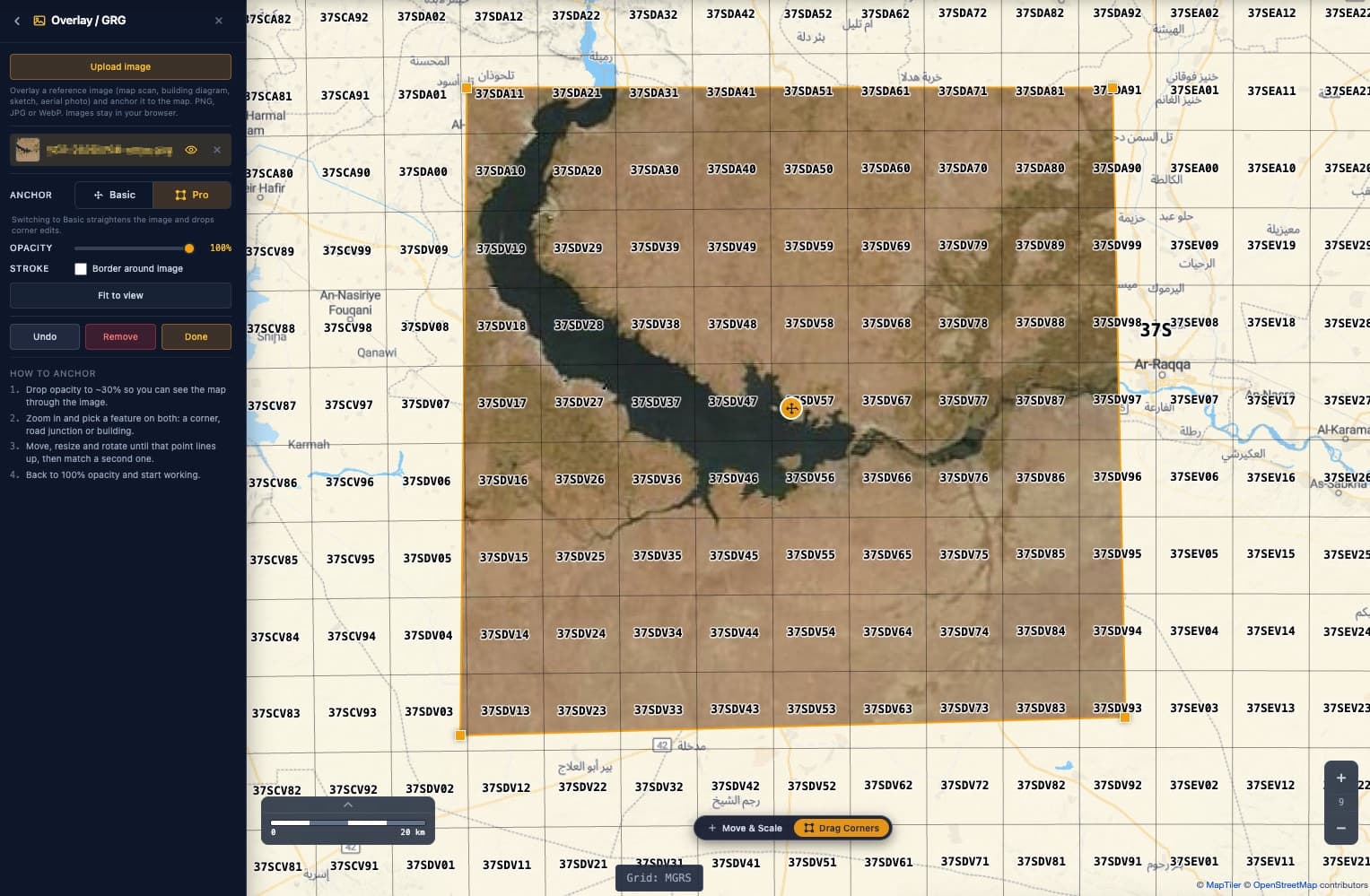
Open the Grid tool. The example below uses MGRS, the NATO worldwide grid that runs from 100km squares down to a single meter, so every square carries its own reference and any point on the image has a name. If you want something simpler, a custom metric grid lets you set the square size in meters and turn on row numbers and column letters, so a position becomes "C4" instead. Either way the grid is tied to the real map, and since your image is anchored to that same map, the squares line up with the picture underneath instead of floating on top of it.
Share it
When it looks right, Capture grabs a screenshot, or Export as Map gives you a titled image or a paper PDF (A4, A3, Letter) at a true cartographic scale, overlay and grid included. Your work stays in the browser between visits, image pixels and all, so you can close the tab and pick it back up later.
Frequently asked questions
What image formats can I use?
PNG, JPG, and WebP. A photo of a paper map or a screenshot of a plan works just as well as a clean export, so you rarely have to convert anything first.
What is the difference between Simple and Pro anchoring?
Simple lets you move, resize, and rotate the image as one piece, which is all you need for a flat top-down picture like a scan or a screenshot. Pro lets you drag each of the four corners on its own. You want that when a photo was taken at an angle rather than from straight overhead: a shot through an airplane window, a drone looking off to the side, a low satellite pass, or even a phone snap of a paper map lying on a desk. Seen from an angle, a square patch of ground turns into a lopsided trapezoid in the photo, so moving and scaling alone will never line it up. Dragging the corners pulls that shape back over the real map.
Does my image get uploaded anywhere?
No. The picture stays on your device. The overlay and its position are saved in your browser so they are still there when you come back, but nothing is sent to a server and there is no account to make.
Can I print or share the finished GRG?
Yes. Capture gives you a quick screenshot, and Export as Map produces a titled image or a paper-sized PDF at a real scale, with the overlay and grid already baked in.