How to Edit GPX Files Online: View, Annotate, and Export GPS Tracks
March 14, 2026
GPX files store GPS tracks, routes, and waypoints in an open XML format. You can now import them directly into MapGridder. View the track on an interactive map, annotate it, measure segments, overlay a reference grid, and export a clean screenshot. No software to install; a quick, free sign-in is only needed to export.
What Is a GPX File?
GPX (GPS Exchange Format) is an open standard for exchanging GPS data between devices and applications. A GPX file contains one or more of:
- Tracks: A sequence of timestamped GPS coordinates recorded during movement (a run, hike, or drive).
- Routes: A planned path defined by ordered waypoints, used for navigation.
- Waypoints: Individual named points of interest like trailheads, campsites, or checkpoints.
GPX files are produced by Garmin devices, Strava, AllTrails, Komoot, Apple Watch, Google Maps (route export), and virtually every GPS-capable app. If you've recorded a hike, planned a cycling route, or downloaded a trail from AllTrails, you likely have a GPX file sitting somewhere.
Importing a GPX File into MapGridder
- Open the Download panel by clicking the download icon in the right toolbar.
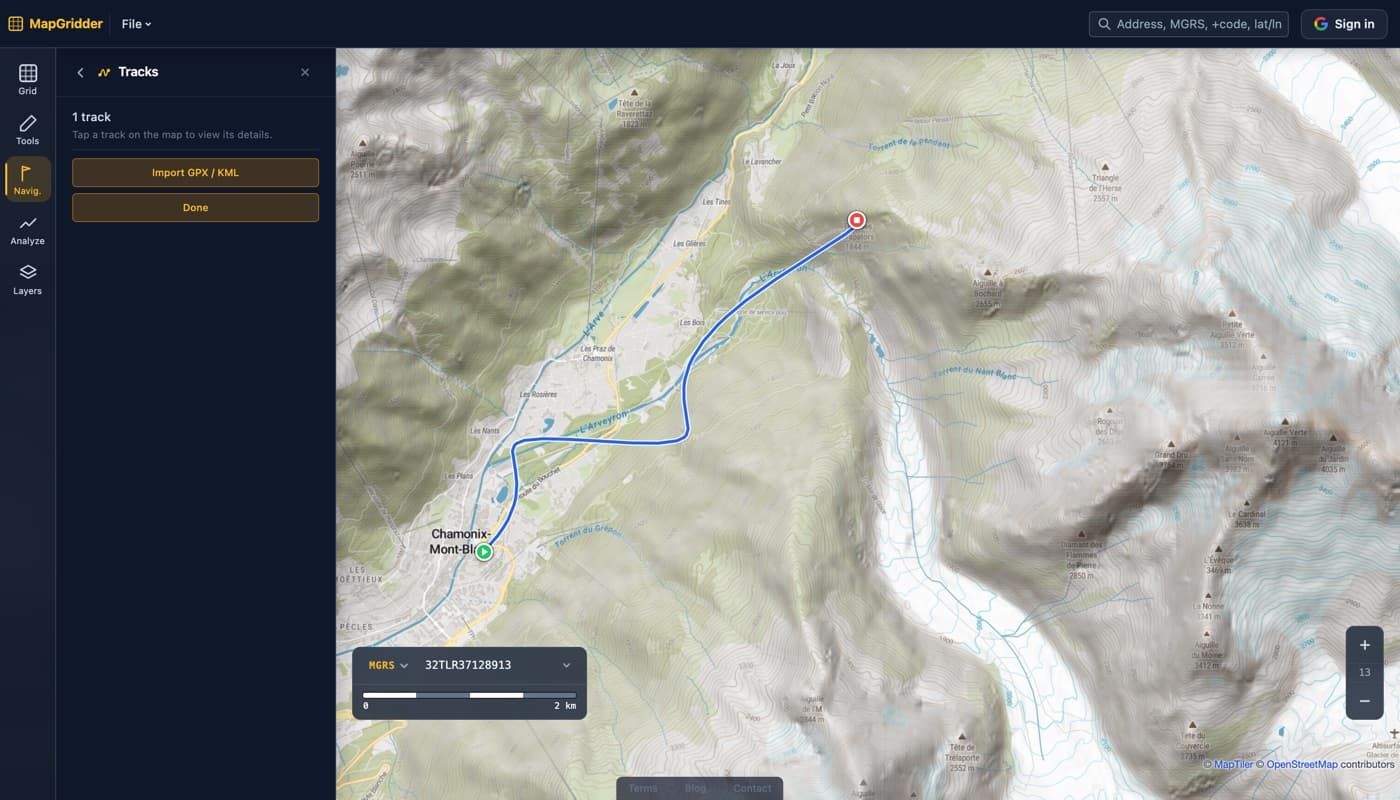
- Click "Import GPX" and select your .gpx file, or drag and drop the file anywhere onto the map.
- The map auto-zooms to the track. Track segments render as colored lines; any waypoints in the file appear as labeled pins.
- From here, use any tool in the toolbar (grid overlay, measure, annotate, or additional waypoints) to build on top of the imported data.
What You Can Do With the Imported Track
Annotate the Route
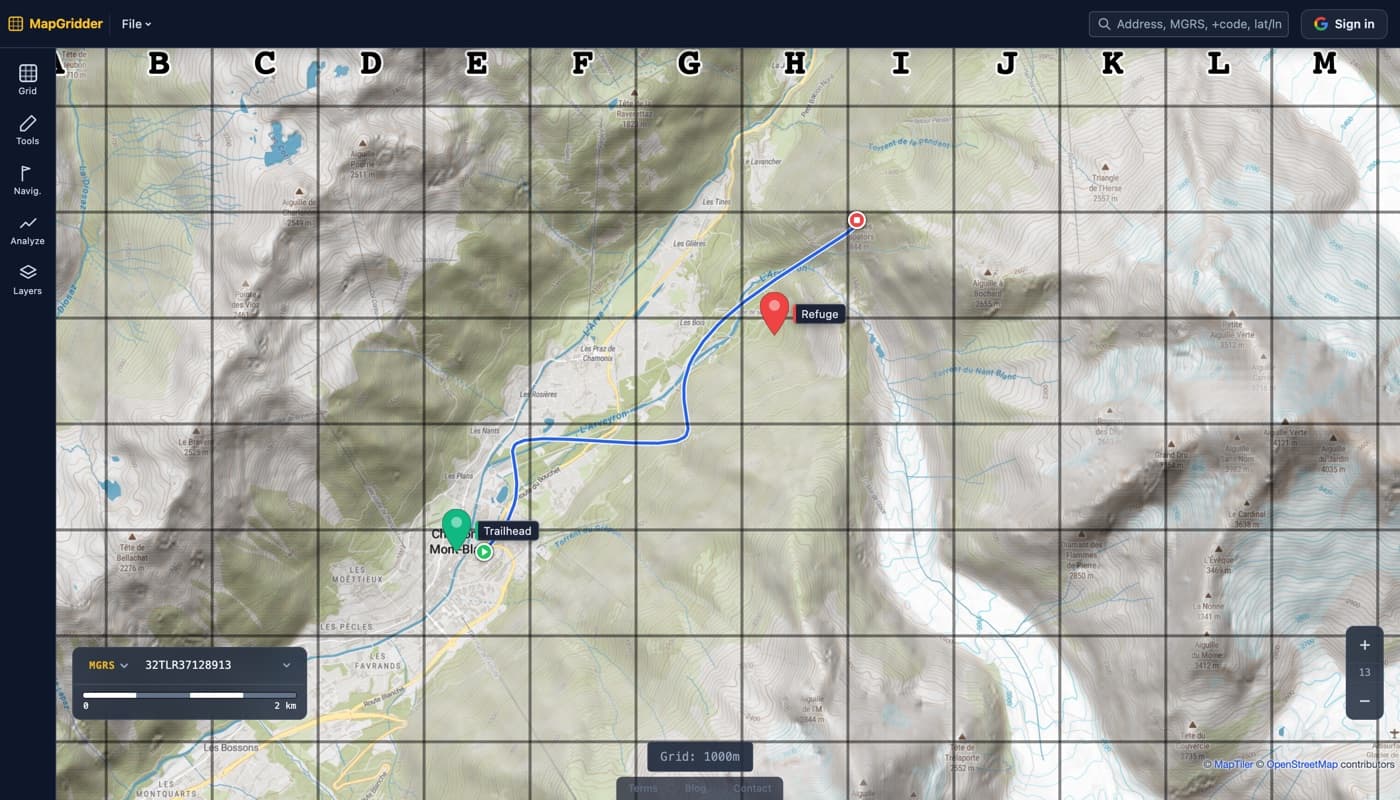
Use the draw tool to add markers, arrows, zones, and labels directly on top of the GPX track. Highlight a dangerous section with a red polygon, draw an arrow pointing to a turn, or circle a rest stop. All annotations support custom colors, line widths, and fill opacity.
Measure Specific Segments
The multi-point measure tool lets you click along the track to measure exact segment distances. Useful for checking how far between checkpoints, estimating a climb section, or confirming a specific leg of the route. Switch between metric and imperial with one click.
Add Waypoint Markers
Drop your own waypoints on top of the track: trailhead parking, water sources, scenic viewpoints, photo stops. Each marker supports a custom label. Your added waypoints are saved alongside the track in the project file.
Overlay a Reference Grid
Activate the grid tool after import to divide the route area into measurable cells. A 500-meter grid is useful for estimating distances at a glance; a 100-meter grid works well for detailed segment planning. Combined with row/column labels (A1, B2, etc.), this turns the map into a shareable reference grid for your team.
Exporting the Result
Once you've annotated and measured the route, you have two export options:
- Screenshot: Capture the full map view or use the snip tool to select a specific region. Exports a clean PNG with no watermark. Great for sharing in team chats, printing briefing documents, or embedding in reports.
- Project file (.mapgridder): Save all annotations, waypoints, measurements, and grid settings to a file you can re-import later. Share it with a colleague so they can open the same annotated map.
Common Use Cases
Trail planning & hiking prep
Download a trail GPX from AllTrails or Komoot, import it, and add markers for water sources, campsites, and bail-out points before the trip.
Race or event route briefing
Import the official race GPX, overlay a 500m grid, annotate aid stations and timing points, then export a clean PNG for the pre-race briefing document.
Post-activity analysis
Export a GPX from Strava or Garmin Connect after a workout. Import it to measure specific sections, mark notable points on the route, and share an annotated map.
Volunteer survey or geocaching event
Import a terrain GPX and overlay a 100m reference grid. Use annotations to mark sectors, hide locations, or photo points, then export a clean reference map for each group.
How MapGridder Compares to Other GPX Tools
| Feature | MapGridder | gpx.studio | Google My Maps |
|---|---|---|---|
| GPX import | Yes | Yes | Yes |
| Grid overlay | Yes (metric/imperial) | No | No |
| Draw annotations | Lines, arrows, shapes | Lines only | Basic shapes |
| Distance measurement | Multi-segment | Yes | Limited |
| Clean screenshot export | No watermark | GPX/file export only | No export |
| Login required | No | No | Google account |
| Save & share project | Local file | URL link | Cloud link |
Tools like gpx.studio are excellent for editing the GPX track itself (merging files, trimming segments, reversing a route). MapGridder complements this by focusing on what happens after you have the track: annotating, measuring, and presenting it on a gridded reference map.
Frequently Asked Questions
What GPX file size is supported?
Files up to 1 MB are supported. Most GPX tracks recorded by consumer GPS devices and apps fall well within this limit. Very long tracks (multi-day hikes with 1Hz recording) may exceed this; consider splitting them or reducing the recording interval before export.
Where do I get a GPX file?
Export from Strava (activity page → “…” menu → Export GPX), from a Garmin device via Garmin Connect, or download trails from AllTrails, Komoot, or Wikiloc. Google Maps lets you export a route as KML (a similar format), which you can convert to GPX using free tools online.
Can I edit the GPX track itself (move points or merge files)?
MapGridder focuses on visualization, annotation, and measurement rather than track editing. To edit the track data itself (merge GPX files, trim segments, or adjust GPS points), use gpx.studio or GPS Visualizer, then import the result here.
Ready to try it? Open MapGridder. Import your GPX, annotate the route, and export a clean map. No install and no watermark; a quick, free sign-in is only needed to export.