How to Export a Map as PDF at Real Scale, with MGRS Grid and Annotations
May 10, 2026
MapGridder is a free PDF map exporter with the MGRS grid, annotations, and waypoints built in. You can export your map as a high-resolution image or as a paper-sized PDF at a real cartographic scale (1:10,000 up to 1:1,000,000). Here is how to do both.
Open the export dialog
Set up your map first: pan and zoom to the area you want, toggle the MGRS grid (or a custom grid) on if you need it, draw any annotations, drop your waypoints. When the map looks the way you want it, open the toolbar at the top and pick:
File → Export as Map
The dialog opens in the middle of the screen. At the very top there is a format toggle: Image or PDF. Pick whichever one fits what you are trying to make.
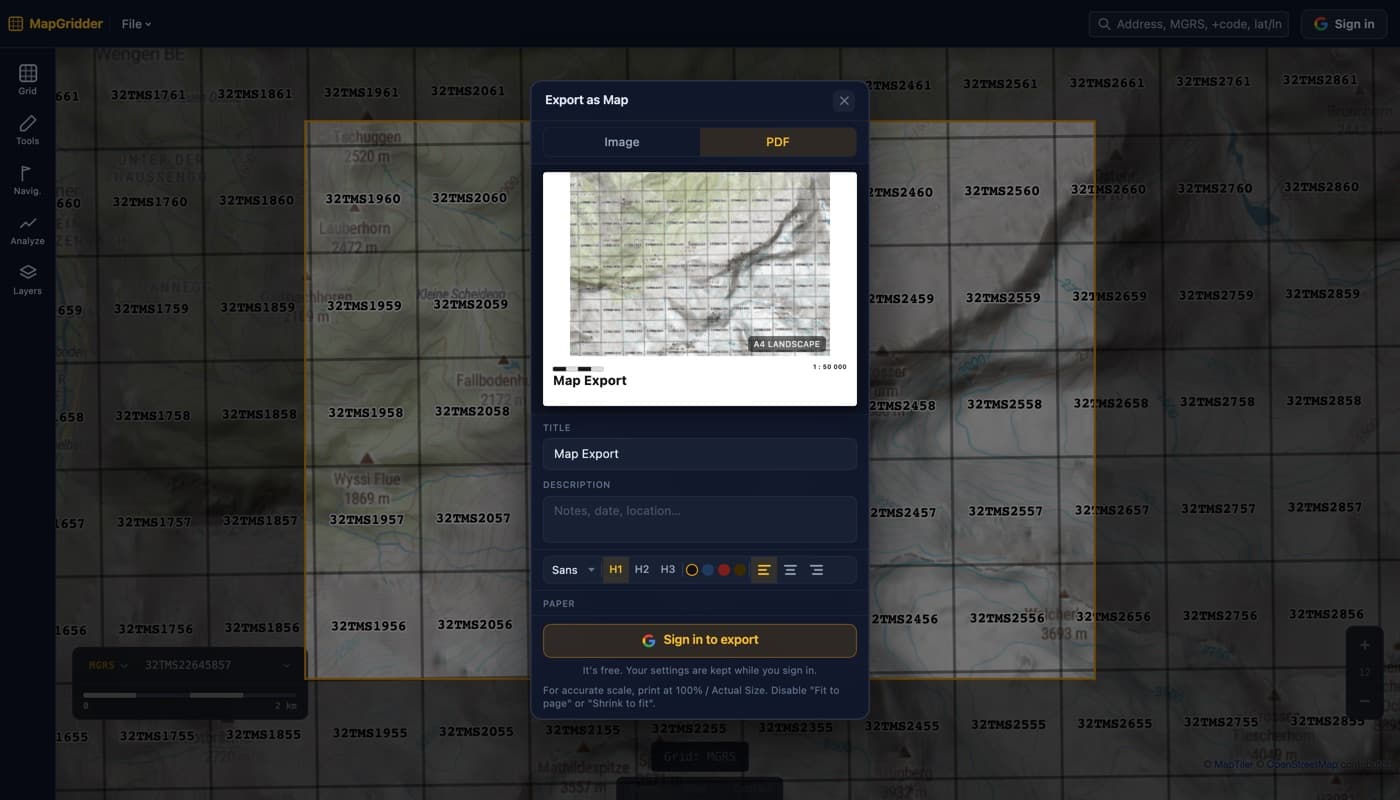
Export a sharp image
Use the Image path when you want a clean rectangular crop of the map for slides, a briefing, a blog post, or a print-at-home reference. It gives you a JPEG.
- Set the format to Image in the dialog header.
- Drag the crop rectangle on the map to frame the area you want. Resize it from the corners; pick an aspect chip if you want a fixed ratio (square, 4:3, 16:9).
- Choose a resolution preset: Standard matches what is on screen. High (1.5x) and Ultra (2x) re-fetch sharper map tiles in the background, so the result is crisper than a screenshot, not just a bigger version of one.
- Add a title and description in the footer section if you want them. Pick a font, alignment, and color from the toolbar.
- Click Export. The JPEG downloads.
Export a PDF at a real scale
Use the PDF path when you actually need to print the map and have it come out at a known cartographic ratio (so a ruler laid across the paper reads the correct ground distance). Good for hiking, field surveys, site planning, training maps, OSINT graphics, and anywhere paper still beats a phone screen.
- Set the format to PDF in the dialog header.
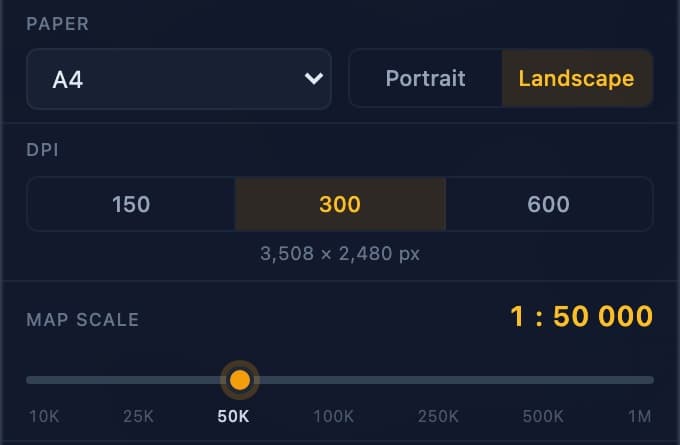
- Pick a paper size: A4, A3, or Letter, portrait or landscape.
- Pick a scale ratio: 1:10,000, 1:25,000, 1:50,000, 1:100,000, 1:250,000, 1:500,000, or 1:1,000,000. The map zooms automatically to match, and a paper-shaped rectangle on the map shows you exactly what will land on the page.
- Pick a DPI: 150 for a quick review print, 300 for a clean professional print, 600 for fine-detail or archival output.
- Add a title and description. These appear in the white footer band below the map alongside a scale bar and the SCALE 1 : N label.
- Pan the map under the rectangle to position your subject inside the page area. The rectangle stays fixed; the map slides around behind it.
- Click Export. The PDF downloads. Print it at 100% (no “fit to page”) and the result on paper is at the ratio you picked.
What gets included
Anything visible on the map at the moment you click Export goes into the file. That includes:
- MGRS grid: the NATO-standard Military Grid Reference System overlay. See the MGRS grid post for the background.
- Custom metric grid: cell size, color, line width, row and column labels.
- Annotations: lines, arrows, polygons, rectangles, circles, with color, line width, line style, and fill.
- Text labels placed directly on the map.
- Waypoints with their labels (RVs, checkpoints, points of interest).
- Routes and tracks (manual or imported from GPX or KML).
- Distance measurements with their distance labels.
- MIL-STD-2525 symbols and topographic pictograms (campground, water, viewpoint, trailhead, etc.).
- Radius rings (range, coverage, blast).
Printing tips
- Always print at 100%. In the print dialog, look for “Actual size” or “Custom Scale: 100%” and turn off “Fit to page” or “Shrink oversized pages”. Otherwise the scale on paper is no longer the scale you chose.
- If you want a quick sanity check, lay a metric ruler across the printed scale bar. It should read the same ground distance as the label.
- Picking a scale that is too fine for the area (e.g. 1:10,000 of a whole region) will overflow the paper. Pick a coarser ratio or a larger paper size.
Who this is for
- Hikers and expedition planners printing a route sheet as a backup to the GPS.
- Volunteer field coordinators (citizen-science surveys, beach cleanups, geocaching events) handing 1:25,000 grid sheets to small groups in the field.
- Event and venue planners producing a 1:10,000 site plan with staging areas and access lanes.
- Trainers and instructors making MGRS practice sheets at the same ratios used on real topographic maps.
- OSINT analysts and journalists producing a paper-sized graphic at a known scale for an article or report.
- Anyone who wants a clean, annotated map image to drop into a deck or document.
FAQ
Will the printed PDF actually be at 1:50,000?
Yes, as long as you print at 100% with no “fit to page”, “shrink to printable area”, or scale factor enabled. Lay a ruler across the printed scale bar to double-check before you rely on it. The output is a planning and reference map, not a survey-grade chart; do not use it as the sole basis for safety-critical decisions.
Can I include the MGRS grid?
Yes. Toggle the MGRS grid on in the Grid panel before exporting. It appears in both image and PDF outputs at the export resolution. Custom metric grids work the same way.
Are annotations and waypoints included?
Yes. Every visible overlay is composited into the export: annotations, waypoint markers and labels, distance measurements, routes, GPX imports, MIL-STD-2525 symbols, and topographic pictograms.
Is anything uploaded?
No. The export runs entirely in your browser. The only network traffic is the basemap tiles needed to draw the map.
Is it free to use?
Yes. No watermark and no per-export fee; a quick, free sign-in is needed to export. The site is supported by display advertising. Personal and non-commercial use is free; commercial use needs a paid license.
Ready to try it? Open the map, set up your view, and pick File → Export as Map.